The latest WordPress security update, version 7.1.4, fixes 22 security defects, including a flaw in WordPress’s own update process that attackers started probing within hours of the patch. If you run a WordPress site, this WordPress security update is not one to postpone.
This guide explains what changed, who is really at risk, and how to apply the WordPress security update safely. You will also learn how to check whether your site was already compromised, what to do if the update breaks something, and where penetration testing fits once the patch is in place.
Table of Contents
What the WordPress Security Update 7.1.4 Fixes
WordPress 7.1.4 shipped on 28 October with fixes for 22 security defects. They include several cross-site scripting (XSS) bugs, interactivity API issues, an unauthenticated information disclosure bug and an authorization weakness. The release also refreshes the bundled root certificates after a certificate authority revocation.
The headline item is a race condition in the WordPress core update process. Defiant, the company behind Wordfence, warned that exploitation began within hours of the patch going public. WordPress responded by randomizing the staging directory, adding an index guard and blocking the unsafe promotion of staged configuration data.
The fixes were also backported to older branches, all the way back to 4.7. That matters because plenty of business sites still run old branches on neglected hosting.
Is the WordPress Security Update Urgent?
Yes, but there is no need to panic. Reports describe the attack complexity as high. An attacker needs a full-package update that contains installer files, public web and PHP access to the staging tree, a staging path they can guess or discover, and enough time before WordPress cleans up the temporary files.
At the time of reporting, no CVE identifier had been assigned to this WordPress vulnerability. Treat the WordPress security update as “patch today”, not “drop everything”.
Who Needs the WordPress Security Update Right Now?
Every site on a vulnerable branch should install the patch. The sites most exposed are:
- Sites with automatic core updates switched off.
- Sites on older branches that nobody has touched in months.
- Sites managed by agencies that batch updates once a month.
- Sites on shared hosting with loose file permissions.
- Sites that recently ran a full-package core update with public web access.
If you are asking “is WordPress 7.1.4 safe to update?”, the answer is yes for almost everyone. The real danger is waiting. Take a backup first and follow the steps below.
7 Essential Steps for Your WordPress Security Update
Follow these seven steps in order. Most sites need about ten minutes for the first four.
Step 1: Confirm Your WordPress Version and Auto-Update Status
Open Dashboard → Updates and note your current version. Then open Tools → Site Health → Info to see whether automatic background updates are enabled.
If you are below 7.1.4, or below the matching backported release for your branch, you need the WordPress security update now. If auto-updates are off, decide whether to switch them on for security releases.
Step 2: Back Up Before the WordPress Security Update
Back up both the files and the database. Store the copy off the server. Then test that you can actually restore it. A backup you have never restored is only a hope.
Step 3: Apply the WordPress Security Update Safely
If you are wondering how to update WordPress safely, use this routine:
- Update on a staging copy first if the site is complex or revenue-critical.
- Pick a low-traffic window and enable maintenance mode.
- Update core first, then plugins, then themes.
- Clear caches and test forms, checkout and login.
Preventing update failures in WordPress mostly comes down to free disk space, correct file permissions and not interrupting the process. Do not close the tab halfway through.
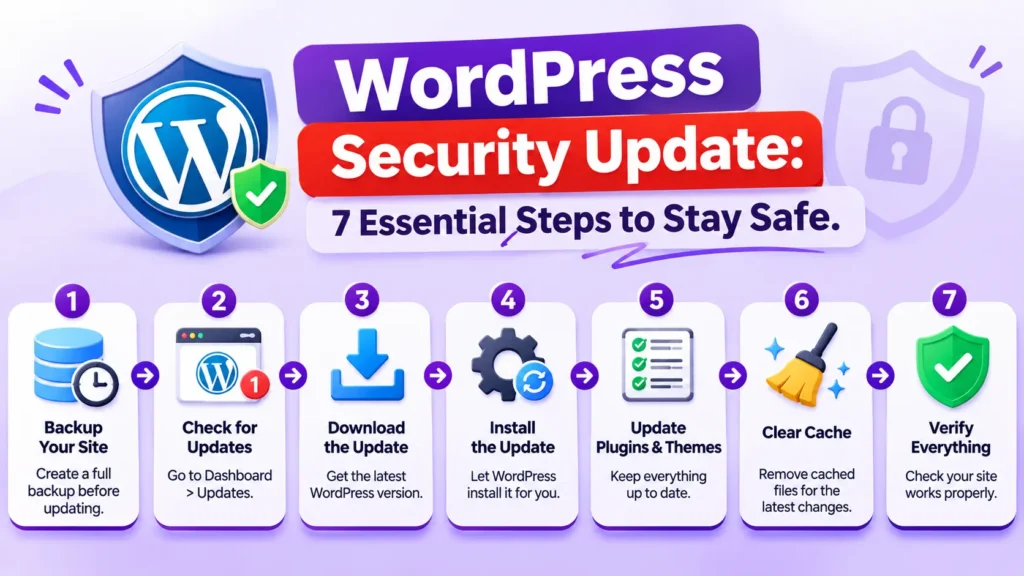
Step 4: Look for Leftover Staging Folders and Unknown Files
Because this flaw sits in the update process, check for files that should not be there. Look inside wp-content/upgradeand the web root for temporary or staging folders that are publicly reachable. Then search wp-content/uploads for PHP files, which have no business being there.
Delete nothing blindly. Note what you find, then compare it with your backup.
Step 5: Review Admin Users and Permissions
Open Users → Administrators and look for accounts you do not recognise. Remove unused accounts, reset passwords for everyone with admin rights and turn on two-factor authentication. Rotate your security keys and salts as well, since that forces all sessions to log out.
Step 6: Scan for Web Shells and Check If Your WordPress Site Is Hacked
After the WordPress security update, confirm nobody got in first. Signs of compromise include:
- Unknown administrator accounts
- Redirects to spam or scam pages
- Core files that no longer match the originals
- New pages full of pharmaceutical or casino links
- Unfamiliar scheduled tasks
If you have WP-CLI, run wp core verify-checksums to compare core files with the official versions. Then scan with a trusted security plugin and review your server logs. To check if a WordPress site is hacked from the outside, look at the Security Issues report in Google Search Console.
If you find a compromise, isolate the site, restore a clean backup, rotate every password and key, and bring in a specialist.
Step 7: Harden and Monitor After the WordPress Security Update
Patching closes one door. Hardening closes the rest. Work through the official WordPress hardening guide and add these basics:
- Put a web application firewall (WAF) in front of the site.
- Add
define('DISALLOW_FILE_EDIT', true);towp-config.php. - Block PHP execution in the uploads folder.
- Give every user the lowest role they need.
- Remove plugins and themes you no longer use.
What If the WordPress Security Update Breaks Your Site?
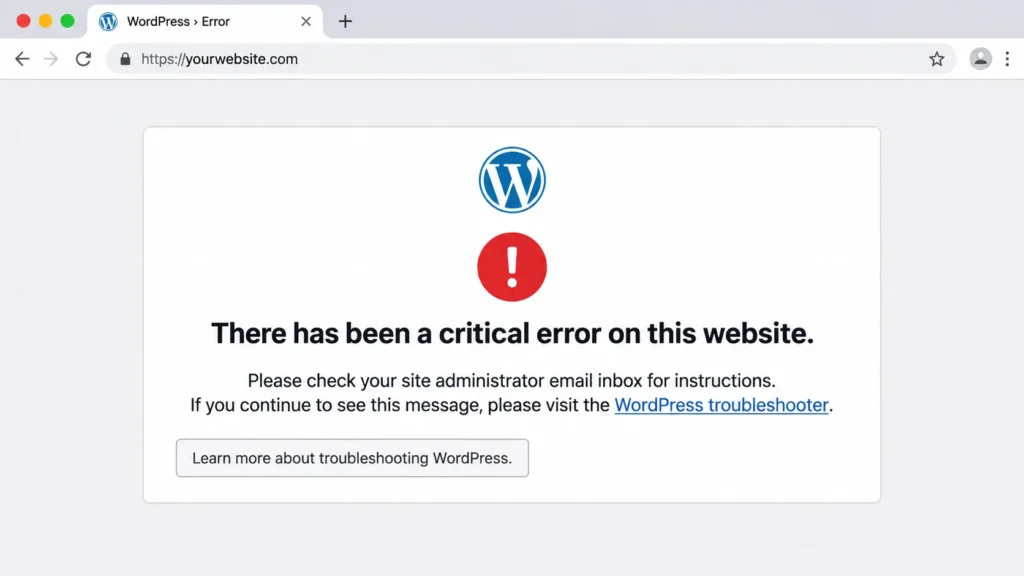
Sometimes an update ends with a white screen or the message “There has been a critical error on this website.” This is a common WordPress error, and it is usually caused by a plugin or theme that is incompatible with the new version. Searches such as “WordPress 6.9 broke my site” show it happens after major releases too.
Here is the fast fix:
- Turn on debug logging with
WP_DEBUG_LOGto see the exact error. - Rename the plugins folder over FTP to disable every plugin at once.
- Switch to a default theme if the error remains.
- Re-enable plugins one by one to find the culprit.
- If nothing works, restore the backup from Step 2.
A WordPress crash after a plugin update is rarely permanent. Do not skip the WordPress security update because of one bad plugin. Replace the plugin instead.
Plugins Are the Bigger Door: Lessons From Bricksforge
Core flaws get the headlines, but plugins are where many WordPress sites are actually breached. A fresh example is the Bricksforge plugin flaw, tracked as CVE-2026-85097 with a maximum CVSS score of 10.0. Patchstack reported active exploitation, and the bug lets an unauthenticated attacker upload and run PHP code on the site.
The lesson is simple. A WordPress security update for core does not protect you from a vulnerable plugin. Keep an inventory of every plugin, update them quickly and remove the ones you do not need. You can also track actively exploited flaws in the CISA Known Exploited Vulnerabilities catalog.
Penetration Testing for WordPress Beyond the WordPress Security Update
A WordPress security update fixes known bugs. It cannot tell you whether your configuration, plugins, server and custom code can be broken today. That is the job of penetration testing.
Why penetration testing is important comes down to one idea: ethical hacking penetration testing finds the weak points before a real attacker does. Our VAPT services combine vulnerability assessment and penetration testing in one engagement.
Vulnerability Scan vs Penetration Test
A scan lists known issues automatically. A penetration test goes further. A tester tries to exploit what the scan finds, chains small flaws together and shows the real business impact. You need both for a complete security risk assessment.
Automated vs Manual Penetration Testing
Automated penetration testing is fast and cheap, so it suits frequent checks. Manual testing catches logic flaws, broken access control and plugin abuse that tools miss. Strong programs mix the two.
External Penetration Testing and Infrastructure Testing
An external penetration test attacks your site the way an anonymous internet user would. External infrastructure penetration testing also covers servers, DNS, firewalls and exposed admin panels. Your WordPress site is only as safe as the host behind it, so infrastructure penetration testing belongs in scope.
Web Application Penetration Testing for WordPress
Web application penetration testing checks login flows, file uploads, forms, REST endpoints and plugin behaviour against the OWASP Top 10. A penetration test of a web application also covers custom themes and code that no scanner knows about. Penetration testing in software testing terms is simply security testing with an attacker’s mindset.
When a Customer Demands a Third-Party Penetration Test
Enterprise buyers and compliance programs increasingly ask for a third-party penetration test and a clear pentest report. Independent testing proves your controls work and often shortens security questionnaires.
If you want a cybersecurity services company to run this for you, talk to Nexus Web Security about vulnerability assessment and penetration testing.
WordPress Website Maintenance Checklist
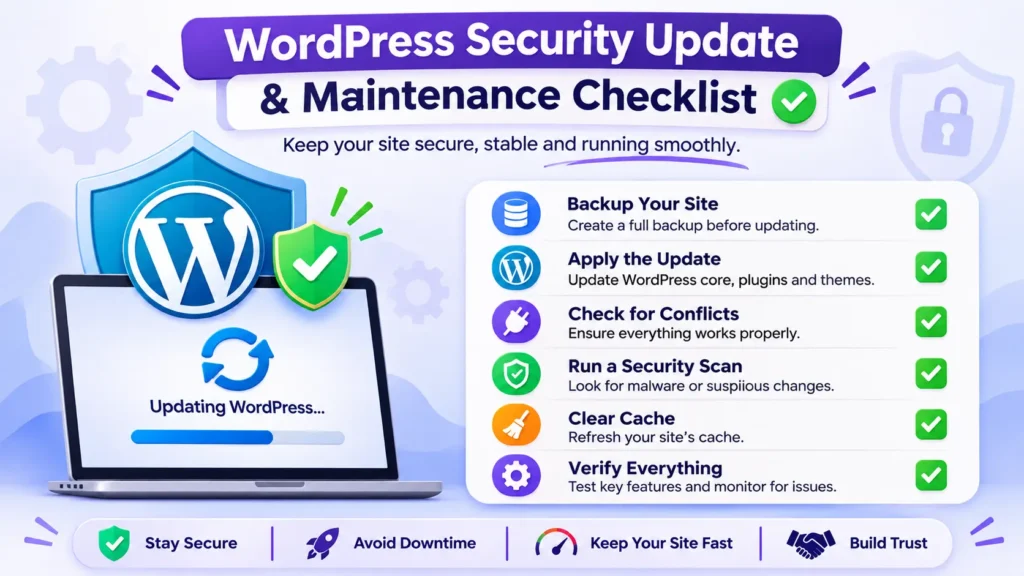
Every WordPress security update is easier when maintenance is routine. Use this WordPress website maintenance checklist:
Weekly
- Check for core, plugin and theme updates.
- Confirm backups ran and the latest one is restorable.
- Review failed logins and new users.
Monthly
- Run a malware and file-integrity scan.
- Remove unused plugins, themes and users.
- Send yourself a WordPress maintenance report covering updates, backups and security events.
Yearly or after major changes
- Book external penetration testing and web application penetration testing.
- Review hosting, PHP version and firewall rules.
WordPress Security Update FAQ
Is the WordPress 7.1.4 security update safe to install?
Yes. Take a backup first, then update. The risk of waiting is higher than the risk of updating.
How do I know if I need the WordPress security update?
Check Dashboard → Updates. If your version is below 7.1.4, or below the matching patched release for your branch, install the update.
How do I check if my WordPress site is hacked after the update?
Look for unknown admins, unexpected redirects and modified core files. Run wp core verify-checksums, scan with a security plugin and review your logs.
Does a WordPress security update replace penetration testing?
No. A WordPress security update patches known flaws. Penetration testing looks for exploitable weaknesses in your setup, plugins and custom code.
Can I turn on automatic WordPress security update installs?
Yes. Minor and security releases can install automatically. Pair that with backups and monitoring, so a failed update never goes unnoticed.
What should I do if I see “There has been a critical error on this website”?
Enable debug logging, disable plugins by renaming the plugins folder, switch to a default theme and restore your backup if needed.
How often should I run penetration testing on a WordPress site?
At least once a year and after major changes such as a redesign, a new plugin or a hosting move.
Final Thoughts and Next Step
Install the WordPress security update, check for signs of compromise and harden your site. Then confirm the whole setup stands up to a real attack.
Not sure your site is safe? The Nexus Web Security team can test it for you. Request a VAPT assessment today and find out what an attacker would find before they do.